 Ripple
New in Android v0.1.8: quick focus, split screen and PiP blocking, daily open limits
Ripple for Android v0.1.8 came out on November 3, 2026. It adds three features: blocked apps can no longer slip through split screen, floating windows or picture-in-picture; quick focus locks the phone with one tap; and each app can get a daily open limit and a pause before it opens. Adults can use them for studying and work, and parents can use them on a child's phone. The iPhone version is still v0.1.5, so these features are Android only for now.
Split screen, floating windows and picture-in-picture are covered now
Some people found a way around blocking: put a video app in split screen, or shrink the video into picture-in-picture, and keep homework or a document open on the other half. v0.1.8 closes that gap.
A kid watching videos in split screen gets stopped
If a child puts a homework app and a short video app side by side, the blocked side gets the block screen, split screen is closed, and the phone goes back to the home screen.
Shrinking a video into PiP does not help
During bedtime hours, a video that shrinks into a corner window is closed by Ripple. The block screen also keeps video apps from jumping into PiP by themselves.
Floating windows are handled too
On phones that can open apps as floating windows, a blocked app in a floating window is backed out, covered by the block screen, and then sent home.
Time in small windows still counts
Time spent watching in split screen, floating windows or PiP counts toward today's usage. A 30 minute daily limit on a drama app runs out the same way.
Calls, alarms and calendar keep working
The system clock and calendar are not blocked in split screen. Ripple only watches windows while a rule is active and turns this check off otherwise.
Quick focus: one tap to lock the phone
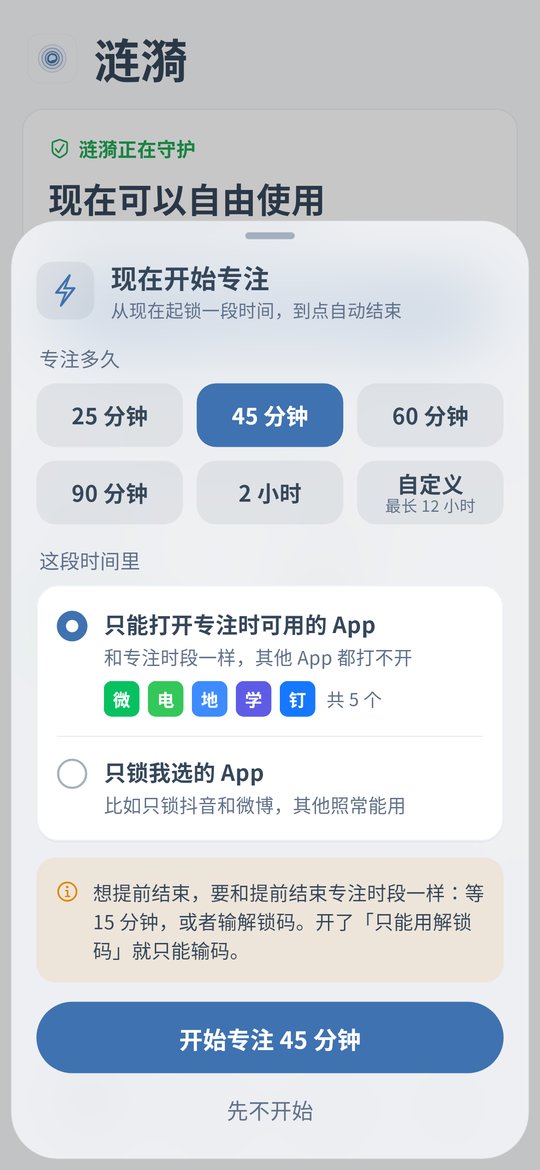
No need to set up a schedule first. Tap once on the home screen when you want to concentrate.
Pick a length
Choose 25, 45, 60 or 90 minutes, 2 hours, or a custom length from 15 minutes to 12 hours. It ends on its own.
Only your focus apps stay open by default
During quick focus only the apps in your focus whitelist open, such as calls, messaging and study apps. You can also pick "Only lock apps I pick" to close just a few apps like TikTok and games.
Ending early needs a wait
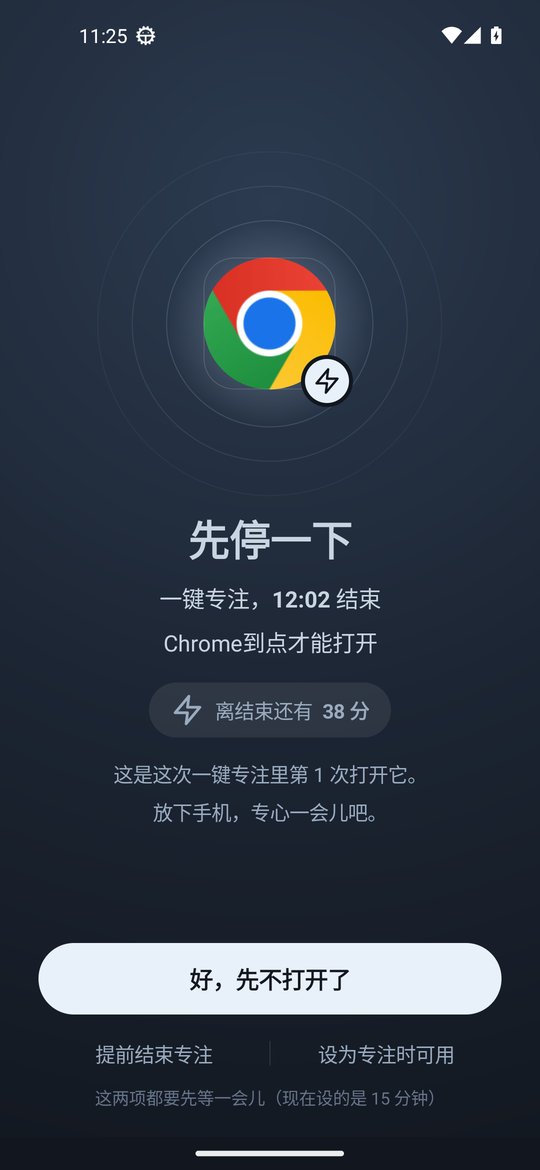
Ending early works like ending a focus schedule early: wait through the cooldown, 15 minutes by default, or enter an unlock code. The timer runs on time since boot, so changing the phone clock does not end it.
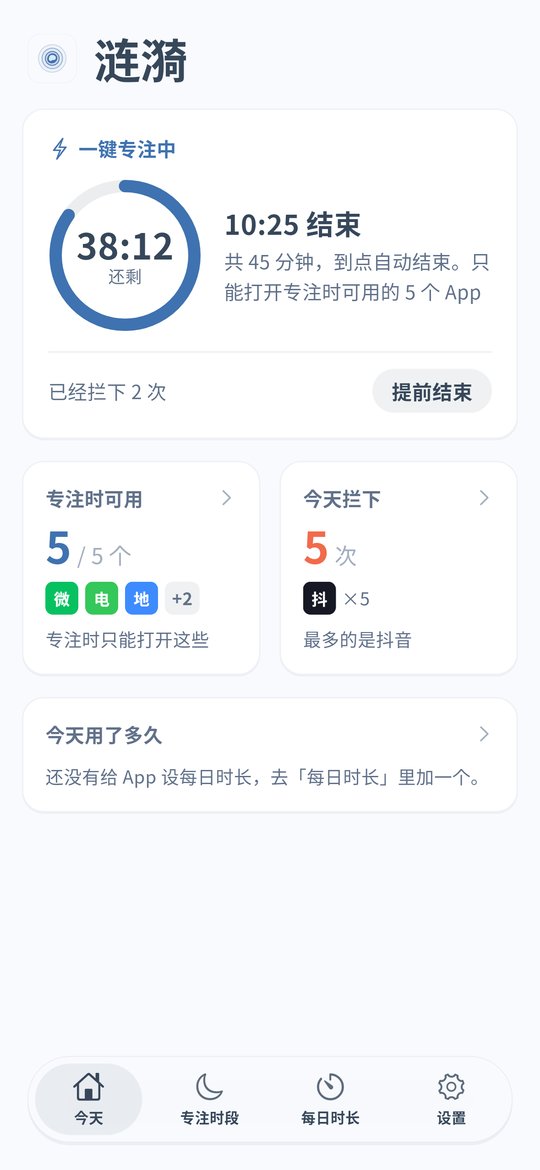
See the time left on the home screen
While it runs, the home screen shows a countdown ring, the end time and how many times apps were blocked.
Works for you and for your kids
Students can tap it before each study session and office workers before a meeting. Parents can start 60 minutes for a child before homework and leave only study apps open.
Open limits and a pause before opening (Android only)
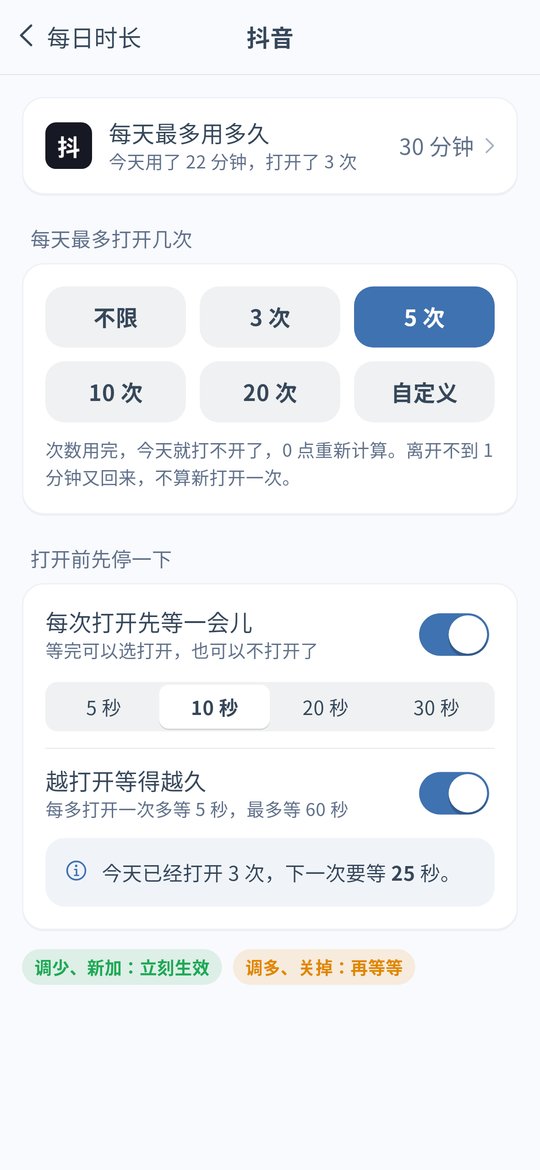
Some apps are opened dozens of times a day for a minute each. Now you can limit the number of opens.
Maximum opens per day
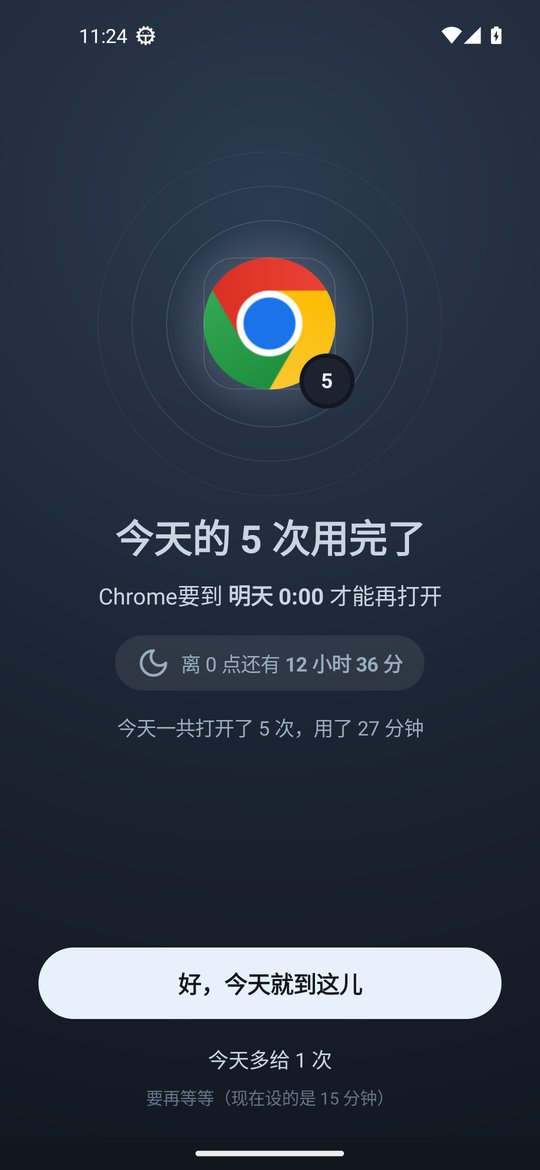
In Daily Limits, open an app and pick 3, 5, 10 or 20 opens a day, or a custom number. Once they are used up the app stays closed until midnight. Coming back within 1 minute does not count as a new open, and neither does turning the screen off and on.
A pause before it opens
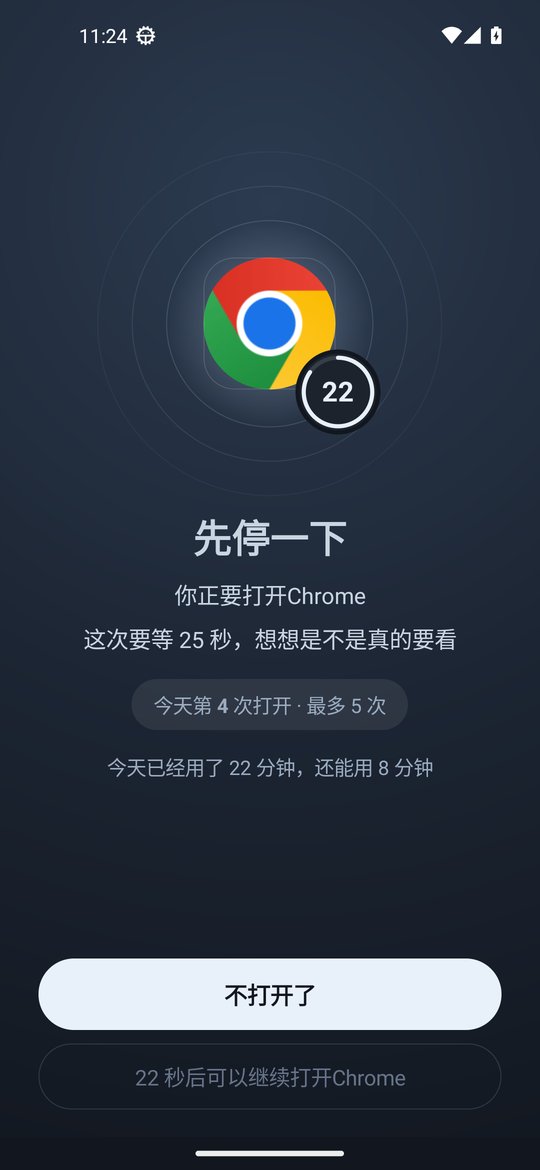
Set a 5 to 30 second pause before each open. The screen shows which open this is today and how long you have used the app today. After the pause you can go on or put the phone down.
Longer pauses with each open
Turn on "Longer each time" to add 5 seconds with every open, up to 60 seconds.
One more open after the limit
When today's opens are used up, an extra open needs the cooldown or an unlock code. Loosening these settings also needs the wait, and tightening them works right away.
How adults and parents can set it up
Studying for exams
Start quick focus for 90 minutes before each study session and keep only flashcard and practice apps open. Limit Instagram and TikTok to 5 opens a day with a 10 second pause.
Focus at work
Tap quick focus for 45 minutes before a meeting or writing, choose "Only lock apps I pick", and close short video and drama apps. Work chat keeps working.
Kids doing homework at home
Before homework, start 60 minutes of quick focus on the child's phone. Split screen and floating video windows are blocked. Give games 3 opens a day.
Kids cannot undo it
The parent keeps the unlock code and can turn on anti-uninstall and strict mode. Changing the phone clock or swiping Ripple away does not get around it. See the clock change page.
What it looks like
These are app screenshots from v0.1.8. They show the Chinese interface; the app also has an English interface.
FAQ
Does the iPhone version have these features?
Not yet. The iPhone version is v0.1.5 and has scheduled blocking, a lock on deleting apps and unlock codes. The three new features are only in Android v0.1.8 for now.
How is quick focus different from a focus schedule?
A focus schedule starts at the same time every day, for example 23:30 to 07:00. Quick focus starts once, right when you want it, and ends by itself without repeating.
Will calls or alarms in split screen be blocked?
No. Calls, alarms and calendar always work. Only apps you set rules for are blocked while the rule is active.
How do I update an older version to v0.1.8?
Use Settings › About › Check for updates in Ripple, or download the latest APK and install it over the old one. Your rules stay and you do not need to uninstall first.
How are opens counted?
An open counts only when the app really comes to the foreground. Coming back within 1 minute, turning the screen off and on, the keyboard and system screens do not count. The count resets at midnight.