 Ripple
Opening the Same App Dozens of Times a Day
Many people pick up the phone for a minute or two at a time. They tap Instagram, X, Reddit or a shopping app, put it down, and pick it up again, and by evening they have opened these apps dozens of times and their work kept getting interrupted. The total time looks small. The number of opens is what hurts. Kids have the same habit. They say they will just take a look, and over one afternoon a game or a video app gets opened a dozen times. Some kids put a video in split screen or a floating window next to their homework. Ripple for Android v0.1.8 can limit apps by the number of opens and also blocks split screen, floating windows and picture-in-picture. The first part below is for adults, and the second part is for parents. Both Android and iPhone are covered.
See it in 20 seconds
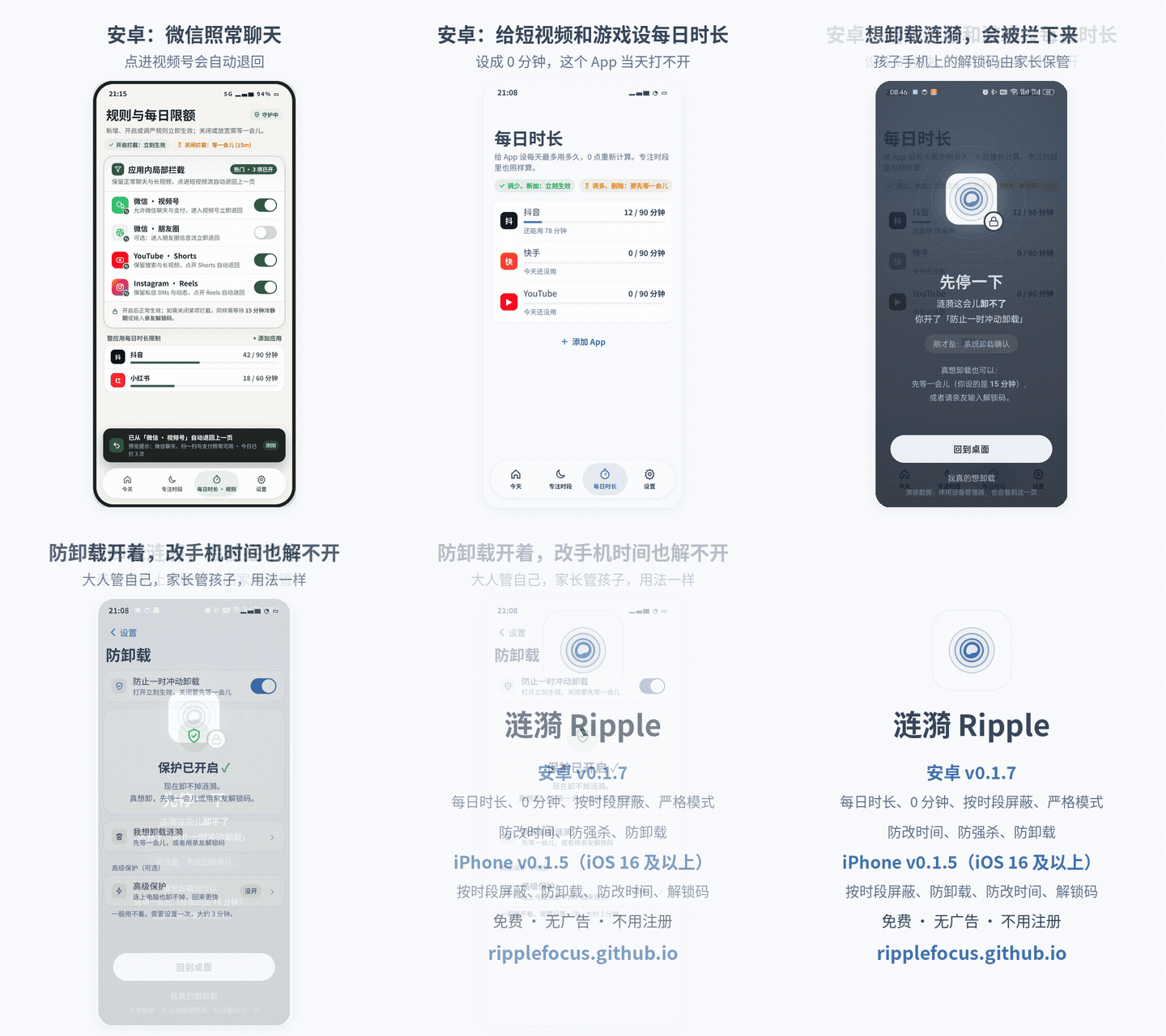
The demo shows the Android v0.1.8 screens with the Chinese interface. The last card lists what Android and iPhone each have. GIF version
Adults limiting the apps they open without thinking
A daily open limit for the app you check most
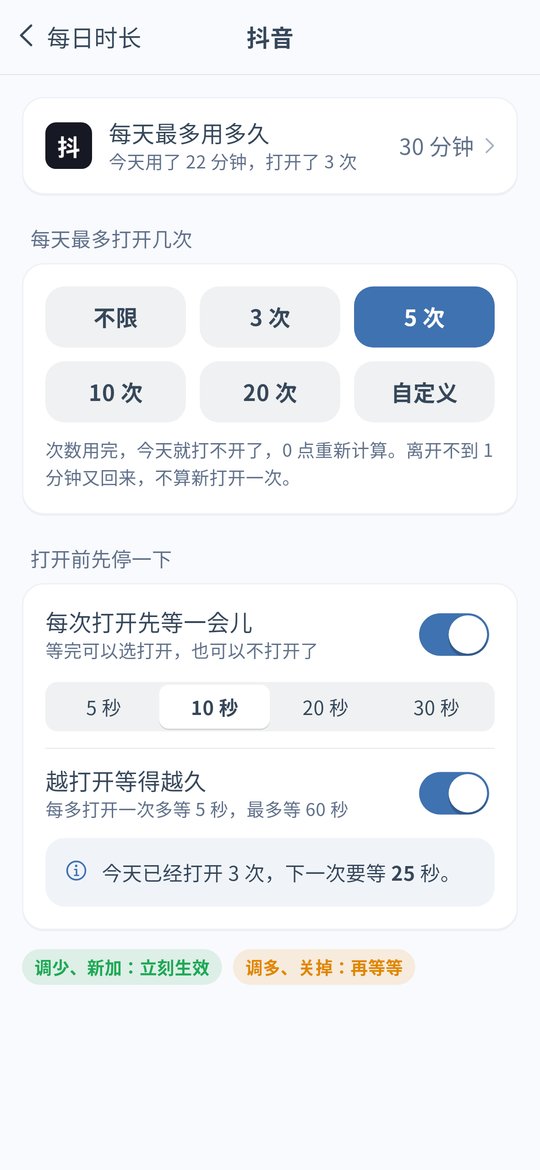
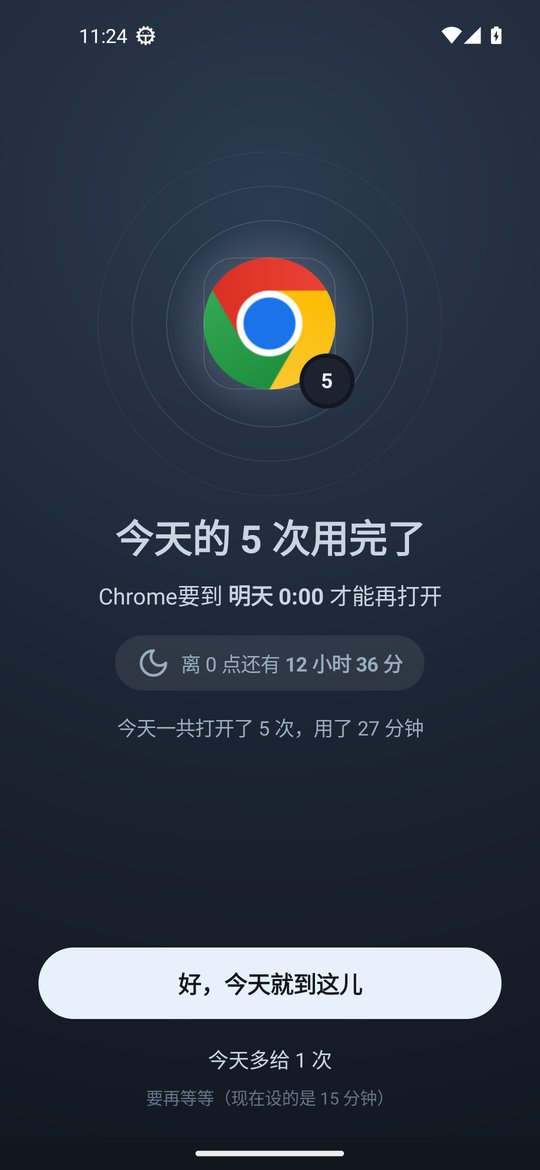
On Android v0.1.8 open an app under Daily limits and pick 3, 5, 10 or 20 opens a day, or a custom number. Give Instagram 5 opens, and once they are used it stays closed for the rest of the day. The count resets at midnight.
A pause before each open
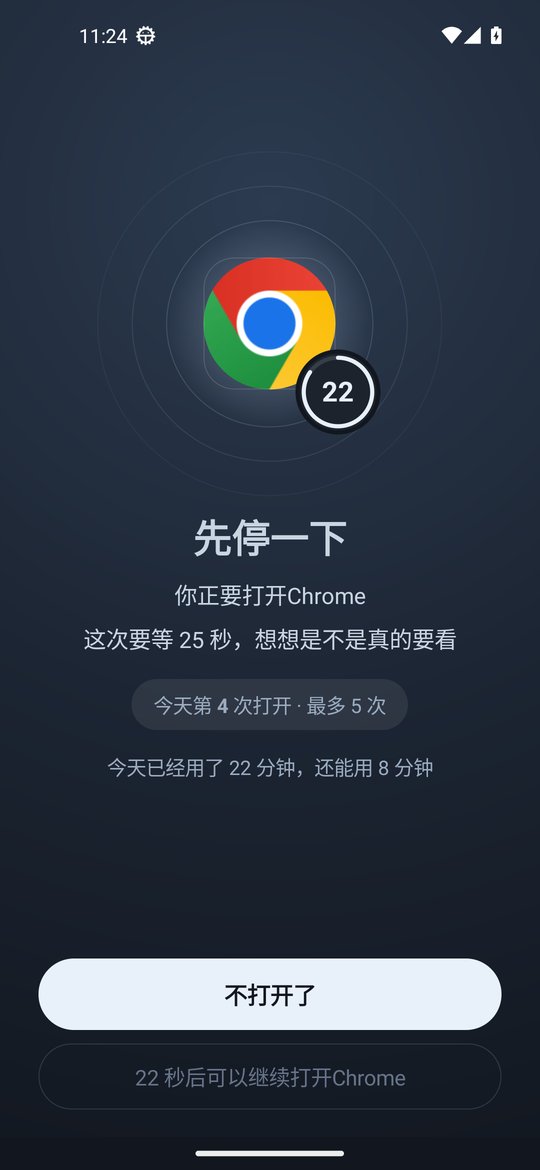
Make the app wait 5, 10, 20 or 30 seconds before it opens. The screen shows which open of the day this is and how long you have used the app today. After the pause you can open it or tap to skip it. Often those few seconds are enough to remember what you were doing.
Longer waits as the day goes on
Turn on the option that adds 5 seconds with each open, up to 60 seconds. The first open in the morning is quick, and by afternoon each extra check takes a while.
Time limit and open limit together
One app can have both a daily time limit and a daily open limit. Whichever runs out first closes the app for the day. Coming back within a minute does not count as a new open, and neither does turning the screen off and on.
An extra open needs a wait
When the opens are used up, one more open needs the cooldown or the unlock code. Raising the limit or turning the pause off also needs the wait, while lowering it applies at once. Give the code to a family member, and on Android you can turn on strict mode as well.
iPhone: schedules
The iPhone version is v0.1.5 and does not have open limits or the pause yet. You can block the apps you check most on a schedule, for example 9:00 to 12:00 on work days. On iOS 16 and later the system blocks them in the background, and someone else can hold the unlock code.
Parents dealing with a child who keeps reopening games and videos
A few opens a day for the favorite game
On Android give your child's favorite game 3 opens a day. When they are used, it stays closed until tomorrow, so the child decides when to play and does not open it after every two homework questions.
A wait before short videos open
Give a video app a 20 second pause and turn on the longer wait with each open. When the child wants a quick look, they have to wait first while the screen shows how many times it was opened today.
Split screen, floating windows and PiP are blocked
Some kids put homework and a video app side by side in split screen or shrink the video into a small window. Android v0.1.8 covers the blocked side with the block screen, closes picture-in-picture, and counts time in those windows toward today's usage.
The child cannot change the settings
An extra open after the limit needs the unlock code, which the parent keeps. Raising the limit also needs the wait. Uninstall protection and strict mode are available. On Android timing uses device uptime, so changing the clock does nothing. See the clock change page.
iPhone: block on a schedule
If your child uses an iPhone, block games and videos on a schedule, for example 19:00 to 21:00 on school nights during homework. With the block on deleting apps turned on, long press removal does not work. See the iPhone page. Open limits and split screen blocking are Android only for now.
Calls and chats stay open
Leave the phone app and chat apps off the list so your child can always reach you. On Android only WeChat Moments and Channels can be closed while chats keep working.
Setup steps
Install Ripple
On Android install the latest APK and turn on the accessibility service. On iPhone you need iOS 16 or later and Screen Time permission.
Find the apps opened most often
Usually short video, social, shopping and game apps. Leave calls, chat and work or school apps off the list.
Android: set opens and the pause
Open the app under Daily limits, choose the daily open limit and turn on the pause before opening. Add a daily time limit if you want.
iPhone: set a schedule
Put these apps into a focus schedule that matches work, class or homework time.
Set the unlock code and uninstall protection
For your own phone give the code to family. On a child's phone keep it yourself. Turn on Anti-Uninstall on Android and the block on deleting apps on iPhone.
FAQ
How are opens counted?
An open counts only when the app really comes to the foreground. Coming back within a minute does not count, and neither do screen off and on, the keyboard or system screens. The count resets at midnight.
The opens are used up and I need the app. What now?
Wait for the cooldown to get one more open, or enter the unlock code. Calls and chat apps keep working if you leave them off the list.
Can my child still watch videos in split screen or a small window?
Not from Android v0.1.8 on. A blocked app in split screen, a floating window or picture-in-picture is blocked too, and time in those windows counts toward today's usage.
Does the iPhone version have open limits?
Not yet. The iPhone version v0.1.5 has schedules, the block on deleting apps, clock change protection and the unlock code.
Does it cost money or need an account?
It is free with no ads and no account. Settings stay on the phone.