 Ripple
Can't Stop Opening Shopping Apps, and Kids Browse Them Too
Around big sales like Singles' Day or Black Friday, a lot of people open Amazon, Temu or Taobao many times a day to see if prices dropped or a new coupon showed up. Each check is a few minutes, then one evening in bed turns into an hour and a full cart. Kids do it too, on an old phone of yours or their own, scrolling cheap things they want. Ripple controls when these apps can open, how many times a day and for how long. Payment passwords and one tap payments still need to be set up in your payment apps. The first part below is for adults, the second part is for parents, and both Android and iPhone are covered.
Open limits and the pause before opening (Android, Chinese interface)
Adults: a pause before you buy
Open a shopping app only a few times a day
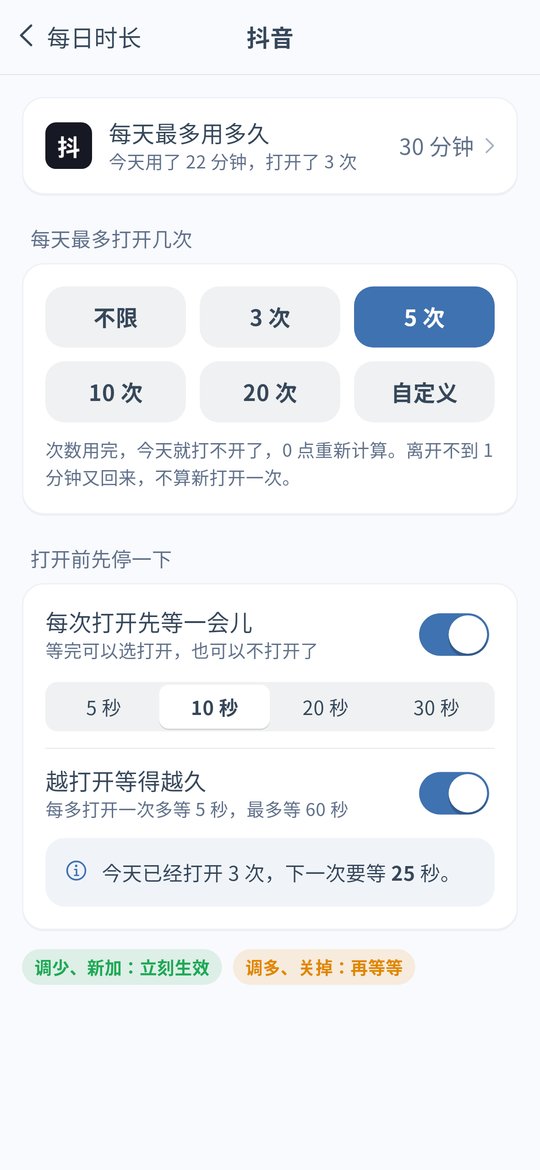
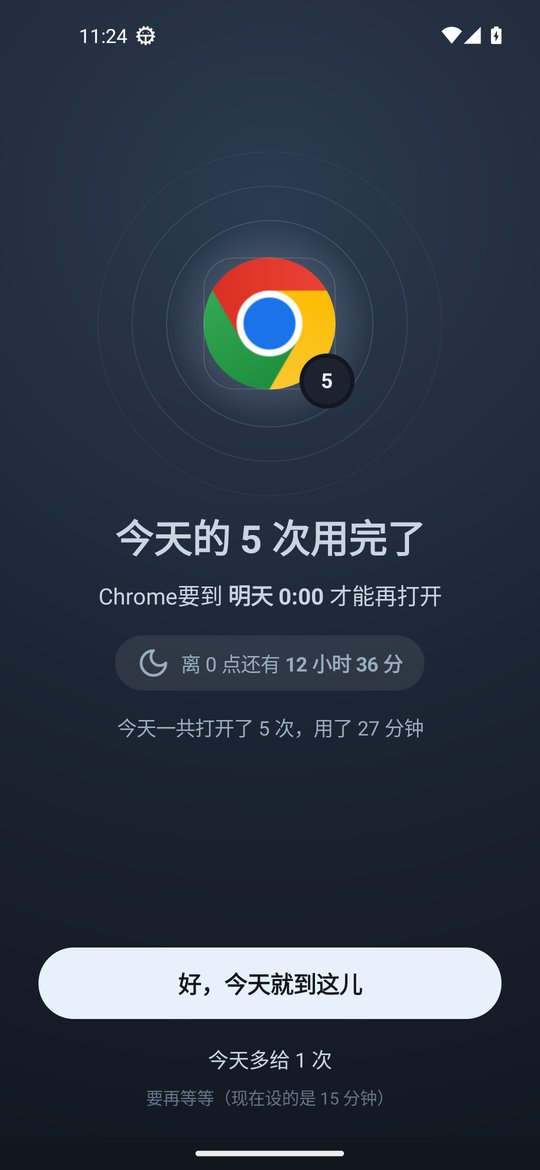
In Daily limits, tap the shopping app and choose 3, 5 or 10 opens a day or a custom number. When they are used up it will not open again until midnight. If you really need something, a few opens is enough.
Wait a few seconds before it opens
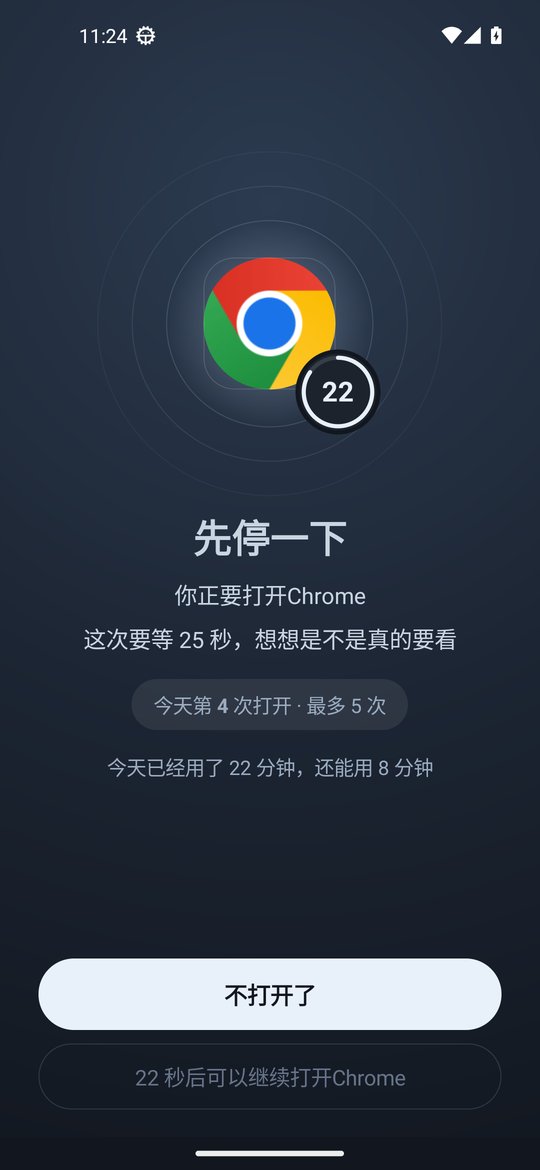
Set a 5, 10, 20 or 30 second pause. The screen shows which open this is today and how long you have used it. Often the urge passes and you tap Don't open. With longer waits turned on, each open adds 5 seconds, up to 60.
Put a number on browsing time
The same app can also get a daily time limit, like 20 minutes. From v0.1.9 you can set any length from 1 minute to 12 hours in 1 minute steps. Whichever runs out first closes the app for the day.
No shopping in bed, use a schedule
Late night is when carts fill up. Create a focus schedule like 11 pm to 7 am and shopping apps will not open.
If you tend to loosen the rules, use strict mode
With strict mode on, loosening rules needs the unlock code. The code is at least 8 digits and you can give it to your partner. Strict mode also turns on Anti-Uninstall, and if the code is lost you can request removal and wait 72 hours.
iPhone: block by schedule
The iPhone version is v0.1.5 and has no open limits or daily limits. Put shopping apps into work hours and bedtime schedules and iOS blocks them in the background. The unlock code works there too.
Parents: kids browsing shopping apps
Block shopping apps all day on a child's phone
On a child's Android phone, set shopping apps to 0 minutes and they will not open at all. When the kid needs something, buy it from your own phone.
Just want less browsing? Limit opens
Some parents let older kids learn to shop on their own. Give the app 2 opens a day and a 20 second pause so every quick look starts with a wait.
Handle games too
If games are also a problem, give them a daily limit or 0 minutes. Ripple cannot stop in game purchases themselves, so turn off password free payments your kid could use.
They cannot change settings or uninstall
With strict mode on, loosening rules needs the unlock code you keep, and Anti-Uninstall turns on. Android timing uses device uptime, so changing the clock does not help. See the clock change page.
Split screen and floating windows do not get around it
A blocked app in split screen, a floating window or picture-in-picture is blocked too. On OPPO phones a floating window is covered and its sound stops, though the window itself has to be closed by hand.
iPhone: block shopping apps by schedule
On a child's iPhone, put shopping apps into an all day schedule and turn on the block on deleting apps so long press removal does not work. See the iPhone page.
Setup steps (Android v0.1.9)
Install or update to v0.1.9
Install the latest APK and turn on the accessibility service. With an older version, update from Settings › About › Check for updates and your rules stay.
Open the shopping app in Daily limits
Choose a daily open limit, turn on the pause before opening, and add a daily time limit if you want. On a child's phone you can set 0 minutes.
Create a bedtime schedule
Add a focus schedule by weekday and time, like 11 pm to 7 am, with shopping apps in it.
Set the unlock code and strict mode if you want
On your own phone give the code to family. On a child's phone keep it yourself. With strict mode on, loosening rules needs the code.
FAQ
How do I stop opening shopping apps all the time during big sales?
In Ripple for Android give the shopping app a daily open limit and a pause before opening, and a daily time limit if you want. If late night buying is the issue, add an 11 pm to 7 am schedule. iPhone v0.1.5 can block by schedule.
Can Ripple block payments?
No. Ripple controls whether a shopping app opens, how many times and for how long. Payment passwords, one tap payments and in game purchases need to be set in your payment apps and phone settings.
How do I fully block shopping apps on my kid's phone?
On a child's Android phone set the app to 0 minutes so it never opens. Turn on strict mode so only your unlock code can loosen rules, which also turns on Anti-Uninstall. On a child's iPhone use an all day schedule and the block on deleting apps.
My opens are used up and I need to buy something. What now?
Wait a moment for one more open, or enter the unlock code. In strict mode only the code works.
Does iPhone have open limits?
Not yet. iPhone v0.1.5 has schedules, the block on deleting apps, clock change protection and the unlock code. Open limits, daily limits, 0 minutes and strict mode are Android only.
Does it cost money or need an account?
It is free with no ads and no account. Settings stay on the phone.