 Ripple
Up All Night on Web Novels, and Kids Read Under the Covers
Web novels and webtoons end every chapter on a hook. You lie down for one more chapter, look up and it is 2 am, and the next day at work is rough. Kids do it too: they say they are going to sleep and then read on Wattpad or a webtoon app under the blanket, and they are tired in class. Ripple can set how long novel and comic apps can be used each day, close them at bedtime, and block them all day before exams. The first part below is for adults, the second part is for parents, and both Android and iPhone are covered.
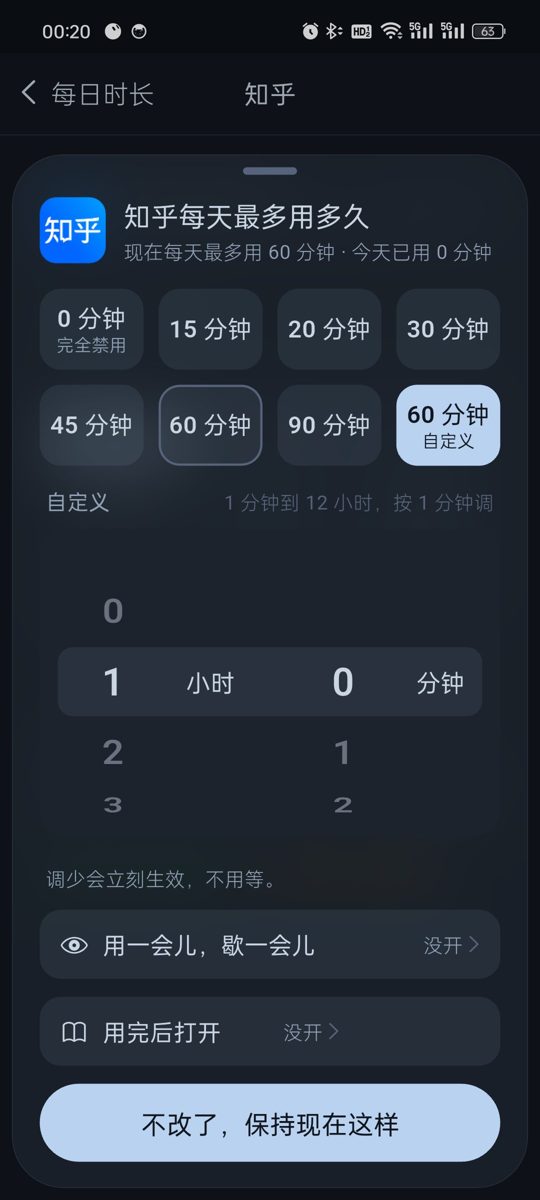
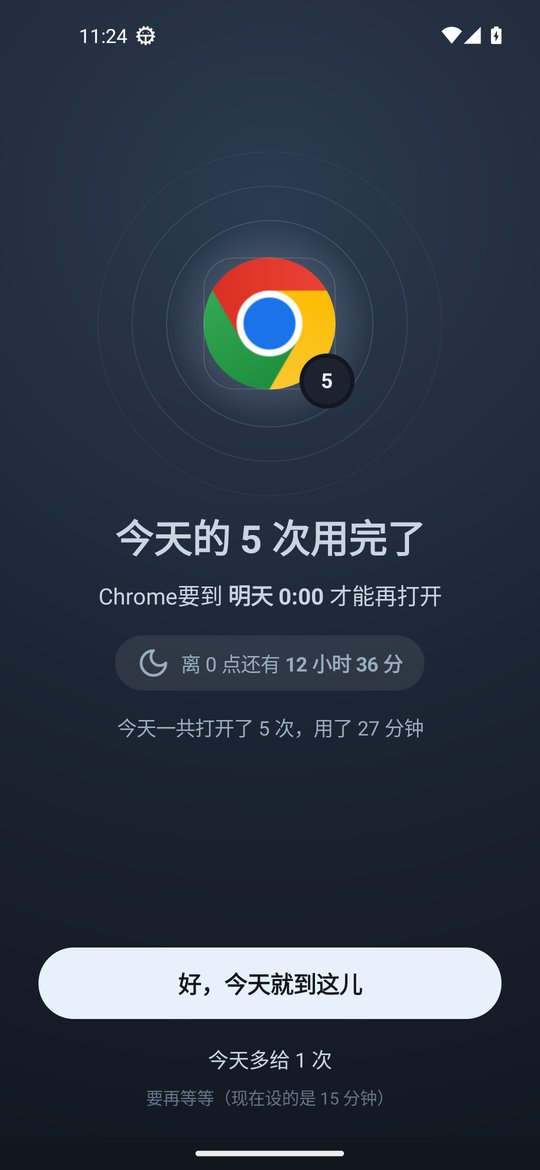
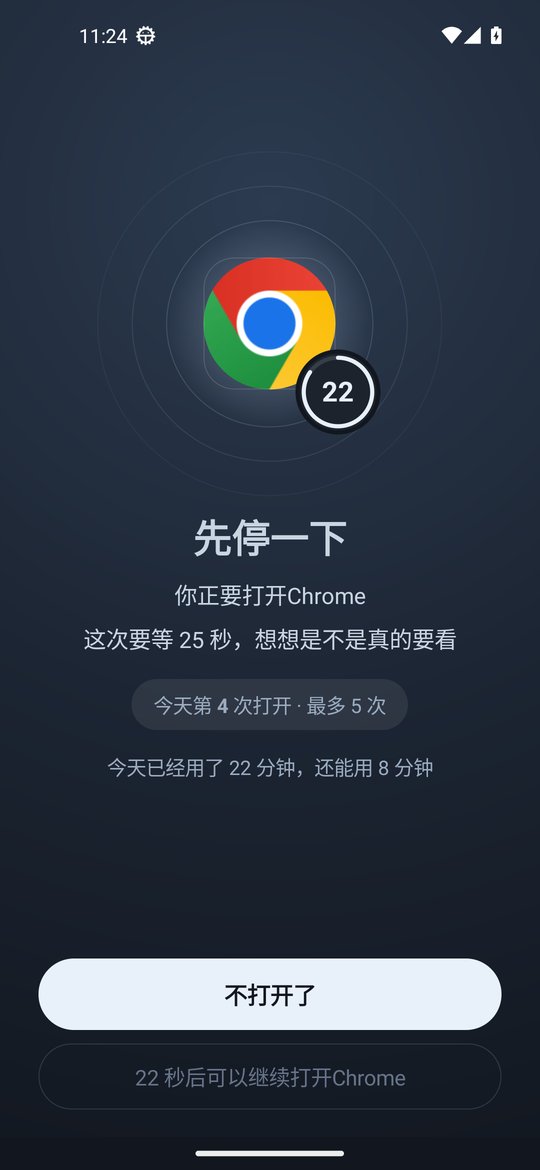
Daily limits and open limits (Android, Chinese interface)
Adults: a few chapters, then sleep
Give novel apps a daily time limit
In Daily limits, tap your novel or webtoon app and set how long it can be used each day, like 45 minutes. From v0.1.9 any length from 1 minute to 12 hours works in 1 minute steps. When the time is used up the app will not open until midnight.
Close them at bedtime
Create a focus schedule from 11:30 pm to 7 am every day and put the novel and comic apps in it. After that they will not open until morning.
Open them less often
If you open the app for two pages every spare minute, give it a daily open limit and a 5 to 30 second pause before opening. The screen shows which open this is today.
If you change settings at night, use strict mode
With strict mode on, loosening rules needs the unlock code. The code is at least 8 digits and you can give it to family or a roommate. Strict mode also turns on Anti-Uninstall, and if the code is lost you can request removal and wait 72 hours.
Take a break from it
If you finish one series and start the next right away, set the app to 0 minutes so it never opens, and change it back later.
iPhone: block by schedule
The iPhone version is v0.1.5 and has no daily limits or 0 minutes. Put novel and comic apps into a bedtime schedule and iOS blocks them in the background. The unlock code works there too.
Parents: kids reading under the covers
Close the apps at bedtime
On a child's Android phone, create a 9:30 pm to 6:30 am schedule every day and put the novel and comic apps in it.
Leave some time for reading
A full ban often sends kids to a friend's phone. Give the app 30 minutes a day and it stops when the time is up.
Block it all day before exams
In the weeks before finals you can set the apps to 0 minutes so they never open, then change them back after.
They cannot change settings or uninstall
With strict mode on, loosening rules needs the unlock code you keep, and Anti-Uninstall turns on. Android timing uses device uptime, so changing the clock does not help. See the clock change page.
Split screen and floating windows do not get around it
A blocked app in split screen, a floating window or picture-in-picture is blocked too. On OPPO phones a floating window is covered and its sound stops, though the window itself has to be closed by hand.
iPhone: block at bedtime
On a child's iPhone, put the apps into a bedtime schedule and turn on the block on deleting apps so long press removal does not work. See the iPhone page.
Setup steps (Android v0.1.9)
Install or update to v0.1.9
Install the latest APK and turn on the accessibility service. With an older version, update from Settings › About › Check for updates and your rules stay.
Open the novel or comic app in Daily limits
Set a daily time limit and a daily open limit if you want. Before exams you can set it to 0 minutes.
Create a bedtime schedule
Add a focus schedule by weekday and time with the novel and comic apps in it.
Set the unlock code and strict mode if you want
On your own phone give the code to family. On a child's phone keep it yourself. With strict mode on, loosening rules needs the code.
FAQ
How do I stop reading web novels all night?
In Ripple for Android give the novel app a daily time limit and add a bedtime schedule that closes it. If you tend to change settings, turn on strict mode and give the unlock code to family. iPhone v0.1.5 can block by schedule.
Will my e-book app for normal books be blocked too?
Ripple only blocks the apps you pick. Pick the web novel and comic apps and leave your e-book app out.
How do I stop my kid reading novels at night?
On a child's Android phone close the apps during a bedtime schedule, leave 30 minutes a day otherwise, and set 0 minutes before exams. Turn on strict mode so only your unlock code can loosen rules, which also turns on Anti-Uninstall. On a child's iPhone use schedules and the block on deleting apps.
What if my kid reads novels in the browser?
Ripple cannot block one website inside a browser. Put the browser into the bedtime schedule too, or give it a daily time limit.
Does iPhone have daily limits?
Not yet. iPhone v0.1.5 has schedules, the block on deleting apps, clock change protection and the unlock code. Daily limits, open limits, 0 minutes and strict mode are Android only.
Does it cost money or need an account?
It is free with no ads and no account. Settings stay on the phone.